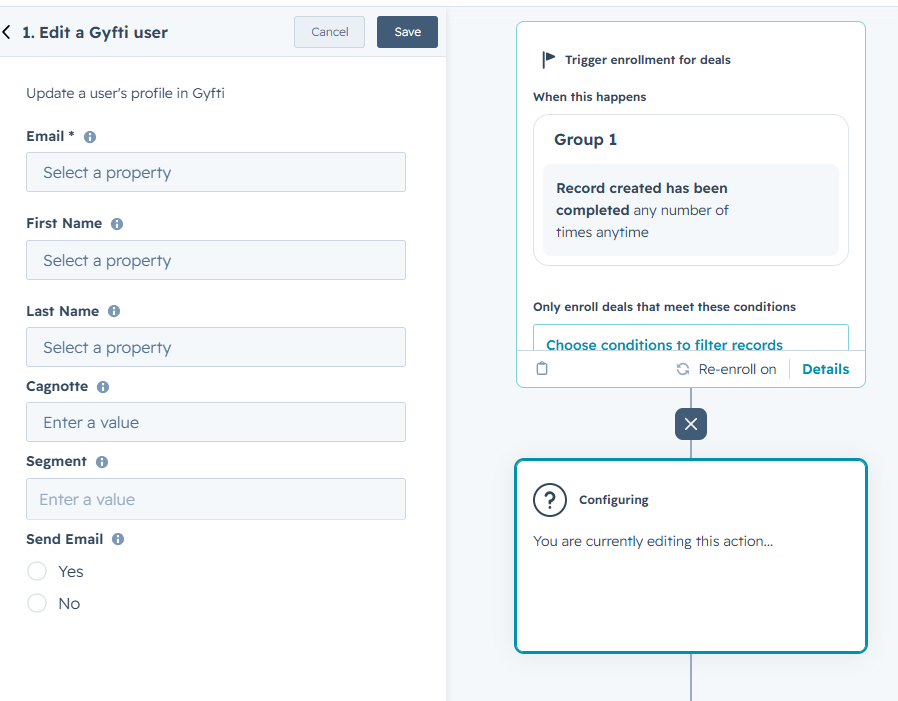
# General documentation of gyfti
## Login api call
`POST` `https://app.gyfti.fr/api/1.1/wf/login/`
This call allows you to login on the platform
#### Request Body
| Name | Type | Description |
| ------------------------------------------ | ------ | ------------------------------------------------ |
| email\* | string | user's email login address for his gyfti account |
| password\* | string | user's password |
{% tabs %}
{% tab title="200: OK " %}
```javascript
{
"status": "success",
"response": {
"token": "[YOUR_TOKEN]",
"user_id": "[YOUR_USER_ID]",
"expires":
}
}
```
{% endtab %}
{% tab title="201 " %}
```javascript
{
// Response
}
```
{% endtab %}
{% endtabs %}
```
{
"email" : "user@email.com",
"password" : "userspassword"
}
```
## Verify credentials with token
`POST` `https://app.gyfti.fr/api/1.1/wf/is_log`
#### Headers
| Name | Type | Description |
| ----------------------------------------------- | ------ | ------------------------ |
| Authorization\* | string | 'Bearer \[YOUR\_TOKEN]' |
{% tabs %}
{% tab title="200: OK " %}
```javascript
{
"status": "success",
"response": {
"user": {
"Created Date": 1632500327533,
"Modified Date": 1654592353339,
"user_signed_up": true,
"authentication": {
"email": {
"email": "users@email.com",
"email_confirmed": true
}
},
"FirstName": "User First Name",
"LastName": "User Last Name",
"Company": "Company ID",
"FullName": " ",
"Picture": "Profile picture",
"Signature": "Your signature",
"Favorite products": [
"Product ID",
"Product ID"
],
"Confirm-email": true,
"news-update": true,
"Role": "Admin",
"Status": "Actif",
"onboarding": true,
"Team": "1653036584766x296414308790698000",
"_id": "1632500327487x574792221359071300"
},
"state": "The user is logged in"
}
}
```
{% endtab %}
{% endtabs %}
## Retrieve user's campaign trigger
`GET` `https://app.gyfti.fr/api/1.1/obj/Campaign`
#### Headers
| Name | Type | Description |
| ----------------------------------------------- | ------ | ------------------------ |
| Authorization\* | string | 'Bearer \[YOUR\_TOKEN]' |
{% tabs %}
{% tab title="200: OK " %}
```javascript
{
"response": {
"cursor": 0,
"results": [
{
"Campaign_Name": "",
"Campaign Reason": "",
"Start date": "",
"Tag": [],
"Created By": "",
"Created Date": "",
"Modified Date": "",
"Campaign Type": "",
"_id": ""
},
}
```
{% endtab %}
{% endtabs %}
## Retrieve user's campaign trigger (postal)
`GET` `https://app.gyfti.fr/api/1.1/obj/Campaign`
#### Headers
| Name | Type | Description |
| ----------------------------------------------- | ------ | ------------------------ |
| Authorization\* | String | 'Bearer \[YOUR\_TOKEN]' |
{% tabs %}
{% tab title="200: OK " %}
```javascript
[
{
"Campaign Status": "Published",
"Created Date": "2022-11-09T14:54:54.973Z",
"Created By": "1632500327487x574792221359071300",
"Modified Date": "2023-02-07T19:09:27.314Z",
"Campaign_Name": "test campagne Zapier",
"Campaign Reason": "Début de contrat",
"Contacts": [
"1632758122730x597040260919066600"
],
"Products": [
"1635951543416x839792715571966700"
],
"Company owner": "1634657344041x544157150139120900",
"Cost": 20.5,
"Owner": "1632500327487x574792221359071300",
"english": false,
"Email-company": false,
"Campaign Type": "Directe trigger",
"Campaign Active Status": "Active",
"Payment Method ID": "card_1L8NOrBYenjykI90G88Flhfb",
"Etat de facturation": "En attente",
"Donations Allowed": true,
"id": "1668005694737x814513677559398400"
},
{
"Campaign Status": "Published",
"Created Date": "2023-01-18T18:29:49.646Z",
"Created By": "1632500327487x574792221359071300",
"Modified Date": "2023-01-18T18:33:44.832Z",
"Campaign_Name": "test trigger avant MEP",
"Campaign Reason": "Fidélisation",
"Contacts": [
"1669814854853x372123130763149300",
"1674064068360x106670271629885440"
],
"Email message": "",
"Products": [
"1635951551681x278283392916034440"
],
"Company owner": "1634657344041x544157150139120900",
"Cost": 84.08,
"Owner": "1632500327487x574792221359071300",
"english": false,
"Email-company": false,
"Campaign Type": "Directe trigger",
"Campaign Active Status": "Active",
"Payment Method ID": "Virement",
"Etat de facturation": "En attente",
"CGV_Accepted": true,
"Donations Allowed": true,
"id": "1674066589330x346680148415217660"
}
]
```
{% endtab %}
{% endtabs %}
## Add new contact to a trigger campaign (email)
`POST` `https://app.gyfti.fr/api/1.1/wf/1_zapier_add_contact_trigger/`
#### Request Body
| Name | Type | Description |
| ---------------------------------------------------- | ------ | ---------------------------------------------------------------------- |
| contact\_firstname\* | String | Your recipent first name |
| contact\_lastname\* | String | Your recipient last name |
| contact\_email\* | String | Your recipient email adress |
| campaign\* | String | The gyfti campaign from your account you wish to send to the recipient |
| jobtitle | String | Your recipient jobtitile |
| Phone | String | Your recipient jobtitle |
| Additional\_address | String | Your recipient additional address |
| Address | String | Your recipient address (number and street) |
| City | String | Your recipient's city |
| Postal\_code | String | Your recipient's postal code |
| Country | String | Your recipient's country |
{% tabs %}
{% tab title="200: OK " %}
```javascript
{
"status": "success",
"response": {}
}
```
{% endtab %}
{% endtabs %}
```
{
"inputData": {
"campaign": "",
"contact_email": "",
"contact_firstname": "",
"contact_lastname": "",
"jobtitle": "",
"Phone": "",
"Adress": "",
"Additional_address": "",
"Postal_code": "",
"City": "",
"Country": ""
},
}
```
## Add new contact to a trigger campaign (postal)
`POST` `https://app.gyfti.fr/api/1.1/wf/1_zapier_add_contact_trigger_directe/`
#### Request Body
| Name | Type | Description |
| --------------------------------------------------- | ------ | ------------------------------------------------------------------------------- |
| contact\_email\* | String | Your recipient email address |
| contact\_fistname\* | String | Your recipient first name |
| country\* | String | Your recipient's country (for delivery purposes) |
| city\* | String | Your recipient's city (for delivery purposes) |
| postal\_code\* | String | Your recipient's postal code (for delivery purposes) |
| additional\_address | String | Your recipient's additional address (for delivery purposes) |
| address\* | String | Your recipient's address (number and street name) for delivery purposes |
| phone\* | String | Your recipient phone number (for delivery purposes) |
| jobtitle | String | Your recipient jobtitle |
| campaign\* | String | The gyfti campaign (postal) from your account you wish to send to the recipient |
| contact\_lastname\* | String | Your recipient last name |
{% tabs %}
{% tab title="200: OK " %}
```javascript
{
"status": "success",
"response": {}
}
```
{% endtab %}
{% endtabs %}
# Authentification
All endpoints require authentification in the form of an access token which must be provided in the `Authorization` header as a Bearer token.
```json
'Authorization': `Bearer YOUR_TOKEN`
```
## Generate an access token
To get a valid Bearer Token, you have to **call** the **Log in** endpoint.
This endpoint is based on your account credentials usine your account email and password.
## Login api call
`POST` `https://app.gyfti.fr/api/1.1/wf/login/`
This call allows you to login on the platform and get back in your success response your access Token to access all endpoints.
#### Request Body
| Name | Type | Description |
| ------------------------------------------ | ------ | ------------------------------------------------ |
| email\* | String | user's email login address for his gyfti account |
| password\* | String | user's password |
{% tabs %}
{% tab title="200: OK Success with your access token" %}
```json
{
"status": "success",
"response": {
"token": "[YOUR_TOKEN]",
"user_id": "[YOUR_USER_ID]",
"expires":
}
}
```
{% endtab %}
{% endtabs %}
```json
{
"email" : "user@email.com",
"password" : "userspassword"
}
```
## Verify credentials with token
You can use this call to verify your credentials and test you access Token.
## Verify credentials with token
`POST` `https://app.gyfti.fr/api/1.1/wf/is_log`
#### Headers
| Name | Type | Description |
| ----------------------------------------------- | ------ | ----------------------- |
| Authorization\* | String | 'Bearer \[YOUR\_TOKEN]' |
{% tabs %}
{% tab title="200: OK success" %}
```json
{
"status": "success",
"response": {
"user": {
"Created Date": 1632500327533,
"Modified Date": 1654592353339,
"user_signed_up": true,
"authentication": {
"email": {
"email": "users@email.com",
"email_confirmed": true
}
},
"FirstName": "User First Name",
"LastName": "User Last Name",
"Company": "Company ID",
"FullName": " ",
"Picture": "Profile picture",
"Signature": "Your signature",
"Favorite products": [
"Product ID",
"Product ID"
],
"Confirm-email": true,
"news-update": true,
"Role": "Admin",
"Status": "Actif",
"onboarding": true,
"Team": "1653036584766x296414308790698000",
"_id": "1632500327487x574792221359071300"
},
"state": "The user is logged in"
}
}
```
{% endtab %}
{% endtabs %}
# Gyfti API
Use the Gyfti API to connect external tools, automations, or customer systems with your Gyfti workspace.
The API is currently divided into two main sections:
### API Portail
The **Portail API** helps you manage users from your portal.
You can use it to:
* Update a portal user’s information
* Assign or update a user segment
* Add or define user points
* Validate a challenge
This API is useful when you want to keep portal users synchronized with another system, such as a CRM, HR tool, or internal platform.
### API Campaign
The **Campaign API** helps you add contacts to your Gyfti campaigns.
You can use it to:
* Retrieve a campaign identifier
* Add contacts to an existing campaign
* Send contact information required for digital or postal gifting campaigns
This API is useful when you want to send campaign contacts from another tool, such as a CRM, form, spreadsheet, or internal workflow.
***
### Before using the API
Each API request must be authenticated with your Gyfti API key.
You can find your API key inside your Gyfti account.
***
### Available API pages
* [**API Portal** — manage portal users and validate challenges](#api-portail)
* [**API Campaign** — add contacts to campaigns](#api-campaign)
# API Portail
## Portal Users API
Use the Gyfti API to manage portal users and validate challenges.
This API allows you to:
* Update a portal user’s information
* Assign or update the user’s segment
* Add or define points for a user
* Validate a challenge
***
### 1. Update a portail user
Use this endpoint to update the information of an existing portal user.
#### Endpoint
```http
POST https://app.gyfti.fr/api/1.1/wf/edit_user
```
#### Headers
```http
Authorization: Bearer YOUR_API_KEY
Content-Type: application/json
```
[Get you API Key from your setting page ](https://app.gyfti.fr/reglages/portail?p=integrations\&tab=api-portail)
#### Request body
```json
{
"email": "text",
"first_name": "text",
"last_name": "text",
"cagnotte": "number",
"segment": "text",
"send_email": "boolean",
"mode_cagnotte": "text"
}
```
#### Parameters
| Parameter | Type | Required | Description |
| --------------- | ------: | :------: | ---------------------------------------------------------------------------------------------------------------------------------------------------------- |
| `email` | string | Yes | The email address of the portal user to update. |
| `first_name` | string | No | The user’s first name. |
| `last_name` | string | No | The user’s last name. |
| `cagnotte` | number | No | The number of points to add or define for the user. |
| `mode_cagnotte` | string | No | Defines how the `cagnotte` value should be applied. |
| `segment` | string | No | The segment name assigned to the user. |
| `send_email` | boolean | Yes | Use `true` or `false` to decide whether the user should receive an email informing them they earned new points and inviting them to connect to the portal. |
#### Example request
```bash
curl -X POST https://app.gyfti.fr/api/1.1/wf/edit_user \
-H "Authorization: Bearer YOUR_API_KEY" \
-H "Content-Type: application/json" \
-d '{
"email": "user@example.com",
"first_name": "John",
"last_name": "Doe",
"cagnotte": 100,
"segment": "VIP",
"send_email": true,
"mode_cagnotte": "add"
}'
```
#### Example response
```json
{
"message": "Modifications appliquées à l'utilisateur !"
}
```
***
### 2. Validate a challenge
Use this endpoint to validate a challenge for a portal user.
#### Endpoint
```http
POST https://app.gyfti.fr/api/1.1/wf/validate_challenge
```
#### Headers
```http
Authorization: Bearer YOUR_API_KEY
Content-Type: application/json
```
#### Request body
```json
{
"challenges_form": "{challenges_form_id}"
}
```
#### Parameters
| Parameter | Type | Required | Description |
| ----------------- | -----: | :------: | ---------------------------------------------------------------------------- |
| `challenges_form` | string | Yes | The challenge form identifier. You can get this ID by configuring a webhook. |
#### Example request
```bash
curl -X POST https://app.gyfti.fr/api/1.1/wf/validate_challenge \
-H "Authorization: Bearer YOUR_API_KEY" \
-H "Content-Type: application/json" \
-d '{
"challenges_form": "challenges_form_id"
}'
```
#### Example response
```json
{
"message": "Challenge validated!"
}
```
# API Campagne
## Add Contacts to Campaigns API
Use the Gyfti API to add contacts to your campaigns.
This API allows you to send gifts to your contacts via your Gyfti campaigns programmatically.
***
### 1. Retrieve the campaign ID
Before adding a contact to a campaign, you need to retrieve the campaign’s unique identifier.
Once the campaign has been published, open the campaign details page in Gyfti. You can find the campaign ID directly in the page URL.
The URL will follow this format:
```http
https://app.gyfti.fr/v3_offreur?tab=campagnes&campaign={campaign_id}&sub=recap
```
The value after `campaign=` is the campaign ID.
For example:
```http
https://app.gyfti.fr/v3_offreur?tab=campagnes&campaign=abc123&sub=recap
```
In this example, the campaign ID is:
```
abc123
```
***
### 2. Add a contact to a campaign
Use this endpoint to add a contact to an existing campaign.
#### Endpoint
```http
POST https://app.gyfti.fr/api/1.1/wf/add_contact_to_campaign
```
#### Headers
```http
Authorization: Bearer YOUR_API_KEY
Content-Type: application/json
```
[Get you API Key from your setting page ](https://app.gyfti.fr/reglages/campagne?p=integrations\&tab=api-campagne)
#### Request body
```json
{
"campaign_id": "{campaign_id}",
"user_email": "text",
"contact_first_name": "text",
"contact_last_name": "text",
"contact_email": "text",
"contact_city": "text",
"contact_postal_code": "text",
"contact_country": "text",
"contact_address": "text",
"contact_phone": "text",
"contact_additional_address": "text",
"contact_job_title": "text"
}
```
#### Parameters
| Parameter | Type | Required | Description |
| ---------------------------- | -----: | :------: | ----------------------------------------------- |
| `campaign_id` | string | Yes | The unique identifier of the campaign. |
| `user_email` | string | Yes | The email address of the user sending the gift. |
| `contact_first_name` | string | Yes | The contact’s first name. |
| `contact_last_name` | string | Yes | The contact’s last name. |
| `contact_email` | string | Yes | The contact’s email address. |
| `contact_city` | string | No | The contact’s city. |
| `contact_postal_code` | string | No | The contact’s postal code. |
| `contact_country` | string | No | The contact’s country. |
| `contact_address` | string | No | The contact’s address. |
| `contact_phone` | string | No | The contact’s phone number. |
| `contact_additional_address` | string | No | Additional address information for the contact. |
| `contact_job_title` | string | No | The contact’s job title. |
#### Example request
```bash
curl -X POST https://app.gyfti.fr/api/1.1/wf/add_contact_to_campaign \
-H "Authorization: Bearer YOUR_API_KEY" \
-H "Content-Type: application/json" \
-d '{
"campaign_id": "abc123",
"user_email": "sender@example.com",
"contact_first_name": "John",
"contact_last_name": "Doe",
"contact_email": "john.doe@example.com",
"contact_city": "Paris",
"contact_postal_code": "75001",
"contact_country": "France",
"contact_address": "10 Rue de Rivoli",
"contact_phone": "+33123456789",
"contact_additional_address": "Apartment 4B",
"contact_job_title": "Marketing Manager"
}'
```
#### Example response
```json
{
"message": "Le contact a été ajouté à votre campagne: {nom du campagne}"
}
```
# Automate your gifts
How to trigger an automation to gyfti
Send a gyfti campaign to a contact to create a tailored made experience to you recipients.
To automate a gyfti campaign you must create in your gyfti account a **trigger campaign**.
We have 2 types of trigger campaigns:
* **Email campaign** will send a campaign email to your recipient
* **Postal campaign** will create an order to send your gift directly by postal (postal address required)
Before adding a contact to a campaign, you must retrieve your campaign list to choose from.
1. [Retrieve your gyfti campaigns](/automate-your-gifts/retrieve-your-gyfti-campaigns)
After choosing your gyfti campaign in your workflow, you'll be able to add your contacts to those campaigns.
2. [Add contact to campaign](/automate-your-gifts/add-contact-to-campaign)
# Retrieve your gyfti campaigns
## Retrieve user's trigger campaign
`GET` `https://app.gyfti.fr/api/1.1/obj/Campaign`
#### Query Parameters
| Name | Type | Description |
| --------------- | ------- | ------------------------------------------------- |
| key | String | The key to which you want to apply the constraint |
| constraint type | String | the type of constraint to apply |
| value | Varying | The Value the constraint should compare to |
| cursor | Number | Start from item # |
| limit | String | Show item until # |
| sort\_field | String | The field you want to sort by |
#### Headers
| Name | Type | Description |
| ----------------------------------------------- | ------ | ------------------------ |
| Authorization\* | String | 'Bearer \[YOUR\_TOKEN]' |
{% tabs %}
{% tab title="200: OK Success" %}
```javascript
{
"response": {
"cursor": 0,
"results": [
{
"Campaign_Name": "Test campaign",
"Campaign Reason": "Fidélisation",
"Start date": "03/01/2023 08:00 am",
"Tag": [],
"Created By": "user@email.com",
"Created Date": "Mar 1, 2023 3:18 pm",
"Modified Date": "Mar 1, 2023 3:18 pm",
"Campaign Type": "trigger",
"_id": "1651515982034x175783272039055360"
},
}
```
{% endtab %}
{% endtabs %}
## Campaign data explained
You can these different **Data Types** to search for campaigns
| Data fields | type | Value |
| -------------- | --------- | ------------------------ |
| Campaign\_Name | text | {YOUR\_CAMPAIGN\_NAME} |
| Campaign Type | text | Trigger, directe trigger |
| Owner | Unique Id | {OWNER\_UNIQUE\_ID} |
**Campaign\_Name:** is the name of the campaign the user gave
**Campaign Type: you should choose between 2 campaign types:**
* **Trigger:** trigger campaigns are campaigns with an email experience sent to the recipient
* **Trigger directe:** trigger directe campaigns are campaigns which create an order dispatched to the postal address added to the recipient
**Owner:** is the user who created the campaign
**Unique id:** is the unique id of a campaign
## Getting a list of things and search
## Retrieve a list of email trigger campaigns
The email trigger campaign endpoint allows you to retrieve a list of Trigger campaigns as a type "email" from your account.
How do you know which campaign can be used as a trigger with a type "email"?
**Campaign Type** must be Trigger
#### Base url : /Campaign
#### Getting a list of things and search
Use this call to retrieve a list of things of a given type, optionally using search constraints.\
\
Add parameters directly in the URL as a querystring (or in the body of the request). It can be `limit`, `cursor`, `constraints`, `sort_field`, and `descending`.\
\
In most search requests, you will use field names. The logic behind the match between field names in the gyfti app and in the request is similar to the one that applies to types. The general rule to figure out the `field_name` for a given field is as follows:\
– Remove the spaces of the caption.\
– Use lowercase letters.\
\
You can also use the name of the field that is returned in the objects. This is the way the field is represented in the app behind the scenes.\
\
In the case where no field matches the field\_name of the request, the server will return a 400 error. If two fields for the current type match the `field_name`, the first one will be used.
#### **Pagination**
By default, all GET requests return the first 100 items in the list. Our API supports the parameters `cursor` and `limit` for pagination. Use `limit` to specify the number of items you want in the response. The default and maximum allowed is 100. Use `cursor` to specify where to start.\
\
At the end of each GET response, three values are returned that let you know where you are in the list:\
– `cursor`: This is the rank of the first item in the list. It equals the cursor you sent, if any.\
– `count`: This is the number of items in the current response. It is the minimum between the actual length of the list and the limit you sent or 100 if you did not specify a limit.\
– `remaining`: This is the number of remaining items after the current response. Use this for the next call.
#### **Search Constraints**
Refine the list that is returned by the Data API with search constraints, exactly as you define a search in gyfti. To do so, pass a `constraints` parameter with the request. This parameter should be an array of constraints, e.g., objects with a `key`, `constraint_type`, and most of the time a `value`. If it is in the URL, it should be stringified and URL-encoded.\
\
`key`: This is the field name the constraint applies to. You can also use the reserved key `_all` for a full-text search in the database.\
\
`constraint_type`: This is the type of constraint you want to apply. It can be:
| Constraint Type | Description | Field Types |
| -------------------------------------- | ------------------------------------------------------------------------- | ----------------------------- |
| `equals` or `not equal` | Use to test strict equality | All field types |
| `is_empty` or `is_not_empty` | Use to test whether a thing's given field is empty or not | All field types |
| `text contains` or `not text contains` | Use to test whether a text field contains a string, for text fields only. | Text fields only |
| `greater than` or `less than` | Use to compare a thing's field value relative to a string or number | Text, number, and date fields |
| `in` or `not in` | Use to test whether a thing's field is in a list or not | All field types |
| `contains` or `not contains` | Use to test whether a list field contains an entry or not | List fields only |
| `empty` or `not empty` | Use to test whether a list field is empty or not | List fields only |
`value`: This is the value the constraint should compare to. It can be a string, number, list, etc., depending on the field type defined by the `key` in the current constraint. If the type of the value isn't correct, gyfti returns a 400 error, 'INVALID\_DATA.'\
\
Constraints with an undefined `value` are ignored. Do not use '\_id' as a key for a constraint. Instead, use the call that retrieves a thing by ID. See above.
#### Example
For example, if you're looking for all 'campaign' whose 'Campaign Type' is 'Trigger' and 'Owner' is '1617009449761x480450913718632450' you will send a constraint parameter as follows:
| Key | |
| ---------------- | ----------------------------------------- |
| key | Campaign Type, Owner |
| constraint\_type | equals, equals |
| value | Trigger, 1617009449761x480450913718632450 |
```json
constraints = [
{ "key": "Campaign Type",
"constraint_type": "equals",
"value": "Trigger"
},
{ "key": "Owner",
"constraint_type": "equals",
"value": "1617009449761x480450913718632450"
}
]
```
**The url should look like this :** \ `https://app.gyfti.fr/api/1.1/obj/campaign?constraints=[{"key":"Campaign Type","constraint_type":"equals","value":"Trigger"},{"key":"Owner","constraint_type":"equals","value":"1617009449761x480450913718632450"}]`
\
**Or URL-Encoded:**\ `https://app.gyfti.fr/api/1.1/obj/subanswers?constraints=%5B%7B%22key%22%3A%22type%22%2C%22constraint_type%22%3A%22`\ `equals%22%2C%22value%22%3A%22Trigger%22%7D%2C%7B%22key%22%3A%22Owner`\ `%22%2C%22constraint_type%22%3A%22equals%22%2C%22value%22%3A%221617009449761x480450913718632450%22%7D%5D`
## Retrieve a list of email trigger campaigns
# Add contact to campaign
This call enables you to add a contact to a gyfti campaign.
First, you must create your campaign on the gyfti app. It must be a Campaign Type "Trigger".
Secondly, you must retrieve the ID of the campaign you wish to add your contact [Retrieve your gyfti campaigns](/automate-your-gifts/retrieve-your-gyfti-campaigns)
Then you can use these calls to add a contact to your campaign.
You have 2 types of campaigns can be automated, therefore, you can use 2 different calls depending if :
* [you want to add a contact to a Trigger campaign (email campaign)](#add-new-contact-to-a-trigger-campaign-email)
* [you want to add a contact to a Directe trigger campaign (postal campaign)](#add-new-contact-to-a-trigger-campaign-postal)
## Add new contact to a trigger campaign (email)
`POST` `https://app.gyfti.fr/api/1.1/wf/1_zapier_add_contact_trigger/`
Use this call if you want to add a contact to an email campaign
Only Campaign Type accepted: trigger
You must retrieve your campaign id to add your contact. The id can be retrieved by a API call or directly on the campaign link when navigating on your account
id"
an example of campaign id : 1795506931386x295342420265398301
The url can be found by opening your campaign in "Your campaigns" menu
The email address of your contact is mandatory
Postal informations are optional
#### Headers
| Name | Type | Description |
| ----------------------------------------------- | ------ | ----------------------- |
| Authorization\* | String | 'Bearer \[YOUR\_TOKEN]' |
#### Request Body
| Name | Type | Description |
| ---------------------------------------------------- | ------ | ------------------------------------------------------------------------- |
| contact\_firstname\* | String | Your recipient first name |
| contact\_lastname\* | String | Your recipient last name |
| contact\_email\* | String | Your recipient email address |
| campaign\* | String | The gyfti campaign id from your account you wish to send to the recipient |
| company | String | Your recipient company name |
| jobtitle | String | Your recipient jobtitle |
| phone | String | Your recipient phone number |
| additional\_address | String | Your recipient additional address |
| address | String | Your recipient address (number and street) |
| city | String | Your recipient's city |
| postal\_code | String | Your recipient's postal code |
| country | String | Your recipient's country |
{% tabs %}
{% tab title="200: OK Success" %}
```json
{
"status": "success",
"response": {}
}
```
{% endtab %}
{% endtabs %}
```json
{
"campaign": "your campaign id",
"contact_email": "recipient@email.com",
"contact_firstname": "recipient firt name",
"contact_lastname": "recipient last name",
"company": "recipient company",
"jobtitle": "recipient jobtitle",
"phone": "recipient phone number",
"address": "recipient address ",
"additional_address": "recipient additional address",
"postal_code": "recipient postal code",
"city": "recipient city",
"country": "recipient country"
}
```
## Add new contact to a trigger campaign (postal)
`POST` `https://app.gyfti.fr/api/1.1/wf/1_zapier_add_contact_trigger_directe/`
Use this call if you want to add a contact to a postal campaign
Only Campaign Type accepted: trigger
You must retrieve your campaign id to add your contact. The id can be retrieved by a API call or directly on the campaign link when navigating on your account
id"
an example of campaign id : 1795506931386x295342420265398301
The url can be found by opening your campaign in "Your campaigns" menu
The email address, full address and phone number of your contact are mandatory
#### Request Body
| Name | Type | Description |
| --------------------------------------------------- | ------ | ------------------------------------------------------------------------------------------------------------------------------------------------------------------------ |
| contact\_email\* | String | Your recipient email address |
| contact\_fistname\* | String | Your recipient first name |
| contact\_lastname\* | String | Your recipient last name |
| campaign\* | String | The gyfti campaign (postal) from your account you wish to send to the recipient |
| additional\_address | String | Your recipient's additional address (for delivery purposes) useful to add the company name if delivered to an office |
| address\* | String | Your recipient's address (number and street name) for delivery purposes |
| phone\* | String |
Your recipient phone number (for delivery purposes)
The phone can be fake if you do not have it (but for some carriers this may block parcel notifications)
|
| jobtitle | String | Your recipient jobtitle |
| city\* | String | Your recipient's city (for delivery purposes) |
| postal\_code\* | String | Your recipient's postal code (for delivery purposes) |
| country\* | String | Your recipient's country (for delivery purposes) |
{% tabs %}
{% tab title="200: OK " %}
```json
{
"status": "success",
"response": {}
}
```
{% endtab %}
{% endtabs %}
# Retrieve data from campaigns
To retrieve data from you campaigns, you can add a webhook url for each type of call you want to use.
You can add the same webhook url to each call if needed.
After intializing and adding your webhook to you gyfti account, you will need to use your webhook as a trigger for your workflow.
Example :
You want to retrieve data from each order of you gyfti app and send them to Hubspot
You will add your webhook url
## Save hook for new order
`POST` `https://app.gyfti.fr/api/1.1/wf/new_hook_order/`
#### Request Body
| Name | Type | Description |
| ----------------------------------------- | ------ | --------------------------------------------- |
| hookUrl\* | String | target url for new order |
| user\* | String | user account to identify your company account |
{% tabs %}
{% tab title="200: OK " %}
```json
{
"status": "success",
"response": {}
}
```
{% endtab %}
{% endtabs %}
# New order
#### Data you can retrieve with this call
| Data field | Description | Field types |
| -------------------- | ------------------------------------------------------------------------------------------------------- | ----------- |
| Recipient email | your contact recipient's email address. This key can be used to identify your contact in your software. | text |
| Recipient first name | your contact recipient's first name | text |
| Recipient last name | your contact recipient's last name | text |
| Recipient company | your contact recipient's company | text |
| Product Name | the product that was sent to your recipient | text |
| Order status | the status of the order | text |
| Charity | the name of the charity your recipient chose to convert to | text |
| Cost excl tax | the cost of the product sent to your recipient excluding taxes but including shipping | number |
| Cost incl tax | the cost of the product sent to your recipient inclusing taxes and shipping | number |
| Created date | the date the order was created | date |
| Sender Email | the user who sent the campaign's email | text |
| Sender first name | the user who sent the campaign's first name | text |
| Sender last name | the user who sent the campaign's last name | text |
| Campaign Name | the campaign name of this order | text |
## Retrieve by webhook new orders on you company account
`POST` `https://app.gyfti.fr/api/1.1/wf/new_hook_order/`
By using this call, you will send gyfti app your webhook url.
For each new order, your webhook will receive data
#### Headers
| Name | Type | Description |
| ----------------------------------------------- | ------ | ----------------------- |
| Authorization\* | String | 'Bearer \[YOUR\_TOKEN]' |
#### Request Body
| Name | Type | Description |
| ----------------------------------------- | ------ | -------------------- |
| hookUrl\* | String | {YOUR\_WEBHOOK\_URL} |
| user | String | |
{% tabs %}
{% tab title="200: OK success" %}
```json
{
"Recipient Email": "recipienttest@gyfti.fr",
"Recipient First Name": "Recipient test FirstName",
"Recipient Last Name": "Recipient test LastName",
"Recipient Company": "Recipient test Company",
"Product Name": "Product name",
"Order Status": "Order status Commandé",
"Charity": "Charity test",
"Cost excl tax": "10",
"Cost incl tax": "12",
"Created date": "2023-01-05",
"Sender Email": "sendertest@gyfti.fr",
"Sender First Name": "Sender test FirstName",
"Sender Last Name": "Sender test LastName",
"Campaign Name": "Campaign Test Order",
"Product Type": "Product Type"
}
```
{% endtab %}
{% endtabs %}
# New email
## Retrieve from webhook every email sent with the gyfti app
`POST` `https://app.gyfti.fr/api/1.1/wf/new_hook_email/`
By using this call, you will send gyfti app your webhook url.
For each new email, your webhook will receive data
#### Headers
| Name | Type | Description |
| ----------------------------------------------- | ------ | ----------------------- |
| Authorization\* | String | 'Bearer \[YOUR\_TOKEN]' |
#### Request Body
| Name | Type | Description |
| ----------------------------------------- | ------ | -------------------- |
| hookUrl\* | String | {YOUR\_WEBHOOK\_URL} |
| user\* | String | |
{% tabs %}
{% tab title="200: OK success" %}
```json
{
"Email Status": "Relance 1",
"Campaign Name": "Campaign test",
"Sender Email": "senderemail@gyfti.fr",
"Sender First Name": "Tom",
"Sender Last Name": "Brok",
"Subject": "New email test Subject",
"Message": "New email test message",
"Recipient Email": "recipientemail@gyfti.fr",
"Recipient First Name": "Recipient test FirstName",
"Recipient Last Name": "Recipient test LastName",
"Recipient Company": "Recipient test Company",
"Send date": "2023-01-05"
}
```
{% endtab %}
{% endtabs %}
# Order update
## Retrieve by webhook order update on you company account (thank you note)
`POST` `https://app.gyfti.fr/api/1.1/wf/new_hook_order_update/`
By using this call, you will send gyfti app your webhook url.
For each new thank you note on orders, your webhook will receive data
#### Headers
| Name | Type | Description |
| ----------------------------------------------- | ------ | ----------------------- |
| Authorization\* | String | 'Bearer \[YOUR\_TOKEN]' |
#### Request Body
| Name | Type | Description |
| ----------------------------------------- | ------ | -------------------- |
| hookUrl\* | String | {YOUR\_WEBHOOK\_URL} |
| user\* | String | |
{% tabs %}
{% tab title="200: OK " %}
```json
{
"Recipient Email": "recipienttest@gyfti.fr",
"Recipient First Name": "Recipient test FirstName",
"Recipient Last Name": "Recipient test LastName",
"Recipient Company": "Recipient test Company",
"Product Name": "Product test",
"Order Status": "Order status Commandé",
"Charity": "Charity test",
"Cost excl tax": "10",
"Cost incl tax": "12",
"Created date": "2023-01-05",
"Sender Email": "sendertest@gyfti.fr",
"Sender First Name": "Sender test FirstName",
"Sender Last Name": "Sender test LastName",
"Campaign Name": "Campaign Test Order",
"Product Type": "Product Type"
}
```
{% endtab %}
{% endtabs %}
# Using gyfti Store
Creating a tailored experience with points and gifts for you community
If you are gamifying your experience with your community, employees or business partners, the Store is a great way to level up your game.
The best way to create a seamless experience is by using our API to connect your tools and automatically create new users to your Store or add money to your users pool in your engagement journey.
For exemple, if you have an affiliate program.
For each new member of this program, you can create a user account to give them access to your tailor-made store.
Each time this member affiliates a new client, you can add a new pool to the account automatically.
3 steps are available :
1. [Add or update a user in your store](/using-gyfti-store/add-or-update-a-user-in-your-store)
2. [Add a new pool to your users](/using-gyfti-store/add-a-new-pool-to-your-users)
3. [Retrieve new orders and pool update](/using-gyfti-store/retrieve-new-orders-and-pool-update)
# Add or update a user in your store
How to automate the creation or update of a new or existing user in your store
Your first step to gamify your experience is to add a new user to your store.
Make sure you have a Store subscription on your account.
You only need :
* your user's First Name
* you user's Last Name
* you user's email address
You can give a first pool to your user when the account is created but this is optional.
This action works just as well for adding an account for a user in your gyfti store, as for modifying an existing account.
## How to add or update a user in your store from Hubspot with Zapier
#### Hubspot Trigger method : new contact in a list
{% embed url="" %}
## Add or update a user in your store
`POST` `https://app.gyfti.fr/api/1.1/wf/add-user-store`
Use this call if you want to create or update a user account in your store in your workflow
#### Headers
| Name | Type | Description |
| ----------------------------------------------- | ------ | ----------------------- |
| Authorization\* | String | 'Bearer \[YOUR\_TOKEN]' |
#### Request Body
| Name | Type | Description |
| ------------------------------------------------- | ------ | ------------------------------------------------------ |
| user\_firstname\* | String | your user's first name |
| user\_lastname\* | String | your user's last name |
| user\_email\* | String | your user's email |
| user\_pool | String | the pool amount of your user when creating the account |
{% tabs %}
{% tab title="200: OK success" %}
```
{
"status": "success",
"response": {}
}
```
{% endtab %}
{% tab title="401: Unauthorized unauthorized" %}
```json
{
"error_class": "Unauthorized",
"args": {
"code": "1612453252352x764738473647384927"
},
"message": null,
"translation": "Invalid or expired token: 1612453252352x764738473647384927"
}
```
{% endtab %}
{% tab title="404: Not Found not found" %}
```json
{
"statusCode": 404,
"body": {
"status": "NOT_FOUND",
"message": "Workflow not found add-pool"
}
}
```
{% endtab %}
{% endtabs %}
# Add a new pool to your users
How to automate new jackpot to your users account
After you have created your users to your store how can you easily add money to their account when they engage with your company?
This endpoint enables you to add money to your user's account in your workflow.
You only need to have your user's email account and the amount you want to add.
## Add a new pool amount to your user's account
`POST` `https://app.gyfti.fr/api/1.1/wf/add-pool`
#### Headers
| Name | Type | Description |
| ----------------------------------------------- | ------ | ----------------------- |
| Authorization\* | String | 'Bearer \[YOUR\_TOKEN]' |
#### Request Body
| Name | Type | Description |
| ------------------------------------------------- | ------ | ------------------------------------------------- |
| user\_email\* | String | your user's email |
| user\_add\_pool\* | String | the amount you want to add to your user's account |
{% tabs %}
{% tab title="200: OK success" %}
```
{
"status": "success",
"response": {}
}
```
{% endtab %}
{% tab title="401: Unauthorized Unauthorized" %}
```
{
"error_class": "Unauthorized",
"args": {
"code": "1612453252352x764738473647384927"
},
"message": null,
"translation": "Invalid or expired token: 1612453252352x764738473647384927"
}
```
{% endtab %}
{% tab title="404: Not Found Not found" %}
```
{
"statusCode": 404,
"body": {
"status": "NOT_FOUND",
"message": "Workflow not found add-pool"
}
}
```
{% endtab %}
{% endtabs %}
# Retrieve new orders and pool update
## How to retrieve a new order from your Store from gyfti to Hubspot using Zapier
### Trigger method : adding order information in Notes on you Hubspot Contact
{% embed url="" %}
## Retrieve by webhook new orders on you company account
`POST` `https://app.gyfti.fr/api/1.1/wf/new_hook_order/`
By using this call, you will send gyfti app your webhook url.
For each new order in the store, your webhook will receive data
**Headers**
| Name | Value |
| ------------- | ------------------ |
| Authorization | '`Bearer '` |
**Body**
| Name | Type | Description |
| --------- | ------ | -------------------- |
| `hookUrl` | string | {YOUR\_WEBHOOK\_URL} |
| `user` | string | |
**Response**
{% tabs %}
{% tab title="200: OK success" %}
```json
{
"Recipient Email": "recipienttest@gyfti.fr",
"Recipient First Name": "Recipient test FirstName",
"Recipient Last Name": "Recipient test LastName",
"Product Name": "Product name",
"Charity": "Charity name",
"Pool_update": 10
}
```
{% endtab %}
{% tab title="400" %}
```json
{
"error": "Invalid request"
}
```
{% endtab %}
{% endtabs %}
# Single Sign-On (SSO)
SSO allows you to automatically connect a user to Gyfti from an external application using a JWT token generated via the API.
## Automatic Authentication
This method allows an external application to automatically log a user into Gyfti without requiring them to create an account or manually sign in.
The steps:
1. The application generates a user JWT token using the Gyfti API.
2. The application redirects the user to Gyfti with this token.
3. Gyfti automatically authenticates the user.
***
## Get your API Key
Before generating a token, you must retrieve your **Gyfti API key**.
1. Log in to your Gyfti account
2. Go to the [**Settings** ](https://app.gyfti.fr/reglages/portail?p=integrations\&tab=api)page
3. Copy your **API key**
⚠️ This key is used to authenticate your API requests. It must remain **confidential** and should only be used on the server side.
***
## 1. Generate a user token
For each user you want to automatically log in, you must first generate a **secure JWT token**.
Send a **POST** request to the following endpoint:
```
POST https://gyfti-widget.replit.app/api/create-token
```
#### Headers
```
Authorization: Bearer YOUR_API_KEY
Content-Type: application/json
```
#### Body
```json
{
"email": "user@example.com",
"companyName": "gyfti-admin",
"firstName": "John",
"lastName": "Doe"
}
```
#### Parameters
| Parameter | Description |
| ----------- | ----------------------------- |
| email | User email address |
| companyName | Name of your company on Gyfti |
| firstName | User first name |
| lastName | User last name |
***
#### Example using cURL
```
curl -X POST https://gyfti-widget.replit.app/api/create-token \
-H "Authorization: Bearer YOUR_API_KEY" \
-H "Content-Type: application/json" \
-d '{
"email": "user@example.com",
"companyName": "gyfti-admin",
"firstName": "John",
"lastName": "Doe"
}'
```
***
#### Example response
```json
{
"success": true,
"token": "eyJhbGciOiJIUzI1NiIsInR5cCI6IkpXVCJ9...",
"destinationUrl": "https://app.gyfti.fr/login_partner/1634657344041x544157150139120900?
token=eyJhbGciOiJIUzI1NiIs..."
}
```
***
## 2. Redirect the user to Gyfti
Once the token is generated, redirect the user to the **destinationUrl** recived from the previous response:
```
https://app.gyfti.com/login_partner/{company-id}?token=YOUR_TOKEN
```
Example:
```
https://app.gyfti.com/login_partner/00000000?token=eyJhbGciOiJIUzI1NiIsInR5cCI6IkpXVCJ9...
```
***
## 3. Automatic authentication
When the user arrives at this URL:
1. Gyfti verifies the token
2. The user is automatically created if they do not already exist
3. The user is logged into their Gyfti workspace
No manual action is required from the user.
***
## Integration flow
```
External Application
│
│ 1. Request token
▼
Gyfti API
│
│ 2. Returns JWT
▼
External Application
│
│ 3. Redirect user
▼
Gyfti
│
│ 4. Automatic authentication
▼
User logged in
```
***
💡 **Tip**
For security reasons:
* Generate the token **server-side**
* Never expose your **API key** in client-side code
# HubSpot Integration (v2)
This section covers the new Gyfti app at [app-v2.gyfti.fr](https://app-v2.gyfti.fr). If your workspace still runs on the previous Gyfti platform (app.gyfti.fr), follow the HubSpot Integration pages instead.
* Setting up HubSpot
* Triggers and Actions reference
* Sending gifts via HubSpot
* Rewarding Users with Points
* Migrating from the legacy integration
> **How to tell them apart in HubSpot:** every v2 action and trigger ends with **(Gyfti v2)**, for example *Send a digital gyfti (Gyfti v2)*. Always pick those for a new workflow.
# Setting up HubSpot
### **Setup guide for Gyfti-App**
Gyfti-App connects a Gyfti workspace to your HubSpot account, which lets you:
* Send gifts to HubSpot contacts from a workflow
* Reward your Gyfti members with points, move them between segments and validate their challenge submissions
* See what your members do in Gyfti (joining, signing in, submitting and validating challenges) on your contacts' timeline
***
#### Before you start
* The **Connexion CRM** pack on the workspace you want to connect. Without it, the Applications tab reads « La connexion CRM ne fait pas partie de cet abonnement »: contact us to add it.
* The **admin** role on that workspace.
> **One connection per workspace.** Each workspace (Touch, Engage or Grow) connects to HubSpot on its own. Several workspaces of the same organisation can share one HubSpot account.
***
**Install the app**
* Log in to [app-v2.gyfti.fr](https://app-v2.gyfti.fr) and open the workspace you want to connect.
* Navigate to **Réglages** > **Intégrations** > **Applications**.
* On the HubSpot card, click **Connecter HubSpot**.
* Select your **HubSpot account** and click **Choose Account**.
* Review the requested scopes. Gyfti-App requests read and write access to your contacts, and access to the timeline. Nothing else (no deals, no companies).
* Click **Connect app**.
* You are redirected back to Gyfti and the HubSpot card shows the connected account.
There is nothing else to set up. The API key your workflows need is created automatically with the connection, and is listed read-only in the **Clés API** tab.
***
**Use the app**
To learn how to set up your workflows, refer to the following sections:
[Rewarding Users with Points](/hubspot-integration-v2/rewarding-users-with-points)
[Triggers and Actions reference](/hubspot-integration-v2/triggers-and-actions-reference)
***
**Disconnect a workspace**
> **Note:** once a workspace is unlinked, HubSpot workflows stop acting on it and its events stop reaching your contacts' timeline. Events already sent stay in HubSpot. The HubSpot account stays connected for your other workspaces.
* Log in to [app-v2.gyfti.fr](https://app-v2.gyfti.fr) and open the workspace, then **Réglages** > **Intégrations** > **Applications**.
* On the HubSpot card, click **Délier** and confirm.
You can reconnect the workspace later in one click.
***
**Disconnect the HubSpot account for the whole organisation**
* The organisation owner opens **Organisation** > **Intégrations**. This page lists your HubSpot accounts and the workspaces connected to each.
* Click **Déconnecter** on the account. The confirmation says how many workspaces lose HubSpot.
Every workspace on that account stops at once. Their settings are kept: if you reconnect the account later, they come back without being reconnected one by one, and meanwhile they show « à reconnecter ».
***
**Choose what reaches your contacts' timeline**
On the HubSpot card, « Ce qui remonte dans la timeline de vos contacts » lists the four events. An admin turns each one on or off in one click. The same page shows the recent activity: the events sent to HubSpot and their status, and the workflow actions received.
***
**Uninstall the app**
To uninstall Gyfti-App from your HubSpot account, follow the instructions in [this HubSpot Knowledge Base article](https://knowledge.hubspot.com/integrations/connect-apps-to-hubspot#uninstall-an-app). This disconnects every Gyfti workspace using that account.
# Triggers and Actions reference
### **Contact Resolution (How we identify the contact in HubSpot)**
For all triggers, Gyfti ensures that a contact exists in HubSpot before sending any event.
**General behavior**
* If a contact with the member's email already exists in HubSpot → we use that contact
* If no contact exists → we create a new one with that email
One person can be a member of several Gyfti espaces. They still have **one** HubSpot contact, so every event carries `instanceName` and `espaceSlug` to tell you which espace it came from.
> Nothing from a **sandbox** (test) espace, and nothing about a test contact, is ever sent to HubSpot.
***
#### Triggers
Every trigger is a HubSpot app event, so it shows on the contact's timeline and can enroll the contact in a workflow. Dates are sent as `DD/MM/YYYY HH:mm`, Paris time. A property with no value is left out.
**1. Espace joined (Gyfti v2)**
When a member creates their account in an espace.
**Data it sends:** `instanceName`, `espaceSlug`, `memberName`, `joinedAt`
***
**2. Espace signed in (Gyfti v2)**
Every time a member signs in to an espace.
**Data it sends:** `instanceName`, `espaceSlug`, `signedInAt`
***
**3. Challenge submitted (Gyfti v2)**
When a member sends their participation to a challenge. The event lands on the participant's own contact.
**Data it sends:** `instanceName`, `espaceSlug`, `challengeName`, `challengeId`, `participationId`, `participantName`, `submittedAt`, `allAnswers`, `answer1` to `answer10`
> `allAnswers` holds every answer. `answer1` to `answer10` hold the first ten, in the order the participant saw the questions: use them for branches in your workflow. A challenge with more than ten questions loses nothing, it is all in `allAnswers`.
***
**4. Challenge validated (Gyfti v2)**
When a submission is **approved**, in Gyfti or by the *Validate challenge submission (Gyfti v2)* action. A rejected submission, or one only opened for review, sends nothing.
**Data it sends:** `instanceName`, `espaceSlug`, `challengeName`, `challengeId`, `participationId`, `status`, `pointsAttributed`, `reviewedAt`
> `pointsAttributed` is a **number**, so you can sum it in a HubSpot report.
***
#### Actions
Actions are available inside contact-based HubSpot Workflows. Use them to trigger operations in Gyfti when a workflow condition is met.
Campaign, challenge, espace and segment are **dropdowns** loaded live from Gyfti. They only list what the workspaces connected to this HubSpot account can actually use.
Every action reports its real outcome: a success shows green in the workflow history, a failure shows red with a message saying why (see Troubleshooting below).
**Send a digital gyfti (Gyfti v2)**
What it does: Adds the contact to a digital gift campaign in Gyfti. Gyfti emails them so they can choose their gift.\
Required fields:
* `Campaign`: the digital campaign, picked from the list of launched campaigns
* `Email`: mapped from the contact's email property
Optional fields:
* `First name`, `Last name`, `Company`, `Phone`
Outputs: `Status`, `Campaign`, `Recipients added`
Example: Enroll a contact in a digital gift campaign when they reach the "Customer" lifecycle stage.
***
**Send a postal gyfti (Gyfti v2)**
What it does: Adds the contact to a postal campaign, with their shipping address. Gyfti ships the campaign's gift to that address.\
Required fields:
* All required fields from *Send a digital gyfti (Gyfti v2)*, plus:
* `Street address`, `Postal code`, `City`, `Country`
Optional fields:
* `First name`, `Last name`, `Company`, `Phone`, `Address complement`
Outputs: `Status`, `Campaign`, `Recipients added`
> A campaign whose product needs a **delivery appointment** is not listed: a workflow cannot choose that date. Send those campaigns from the Gyfti app.
Example: Send a physical gift when a deal is marked Closed Won, using the contact's shipping address.
***
**Validate challenge submission (Gyfti v2)**
What it does: Approves the contact's submission on a challenge and credits the challenge's points.\
Required fields:
* `Challenge`: picked from the list of active or paused challenges
* `Email`: mapped from the contact's email property, it names the participant
Outputs: `Status`, `Challenge`, `Points awarded`
Gyfti approves the contact's **oldest** submission still awaiting review on that challenge. If they have none, the action fails rather than doing nothing.
Example: Validate a submission automatically when a HubSpot form or deal confirms the challenge was done, and reward the member with the challenge's points.
***
**Edit a Gyfti user (Gyfti v2)**
What it does: Updates a member's name, segment or points balance in an espace.\
Required fields:
* `Espace`: the espace the member belongs to. One person can be a member of several espaces, so the email alone does not say which balance to change
* `Email`: identifies the member in that espace
Optional fields:
* `First name`, `Last name`: left unchanged if empty
* `Points`: **Add points** adds the value to the balance, **Set balance to** replaces the balance with it. Required as soon as `Points value` is filled
* `Points value`: a whole number
* `Segment`: one of the chosen espace's segments. A member is in one segment at a time
* `Or new segment`: a segment name to type instead. Gyfti reuses a segment of this espace with the same name (capitals, accents and spaces ignored) and creates it otherwise. Wins over `Segment`. 80 characters max
* `Send email`: **Yes** emails the member their new points balance, only when this action changed their points
Outputs: `Status`, `What changed`, `Points balance`, `Email to the member`, `Segment created`, `Segment used`
Example: Move a member to the "VIP" segment and add points when they hit a milestone.
***
#### Troubleshooting
**A dropdown is empty**
* **Campaign** lists the **launched** campaigns of a Touch workspace connected to this HubSpot account.
* **Challenge** lists the **active or paused** challenges of a connected Grow workspace.
* **Espace** lists the connected Engage and Grow espaces.
* **Segment** needs an espace first, then lists that espace's segments.
If a list stays empty, check in Gyfti that the workspace is connected to **this** HubSpot account (Réglages > Intégrations > Applications).
**Error messages**
| Message in the workflow history | What to do |
| ---------------------------------------------------------------------------- | --------------------------------------------------------------------------------------------------------------- |
| The contact has no email address, so Gyfti cannot identify them. | Add an "Email is known" filter to the workflow's enrollment. |
| Choose a campaign. / Choose a challenge. / Choose an espace. | A required dropdown is empty in the action. |
| A postal gyfti needs a street, a postal code, a city and a country. | One of the address properties is empty on the contact. |
| That challenge is no longer on a workspace linked to this HubSpot account. | The challenge's workspace was unlinked. Reconnect it or pick another challenge. |
| No member matches that id or email. | The contact is not a member of the chosen espace. *Edit a Gyfti user* updates members, it does not create them. |
| That segment belongs to another espace. Pick a segment of the chosen espace. | The espace changed after the segment was picked. Pick the segment again. |
| That segment no longer exists. Pick another one. | The segment was deleted in Gyfti. |
| Choose « Add points » or « Set balance to » beside the amount. | A points value is filled with no mode. |
| The points value must be a whole number. | Use a whole number. |
| This HubSpot portal is not connected to a Gyfti organization. | No workspace is connected to this HubSpot account. See Setting up HubSpot. |
| The Gyfti connection for this portal is inactive. | The HubSpot authorisation was revoked or expired. Reconnect the account in Gyfti. |
Other refusals (budget, stock, permissions) come back with their own message.
**Nothing reaches the timeline**
1. Check the workspace is connected (Réglages > Intégrations > Applications).
2. Check the event is turned on under « Ce qui remonte dans la timeline de vos contacts ».
3. Look at the recent activity on the same page: a skipped event says why, a failed one is retried automatically.
4. *Challenge validated* is only sent for an **approved** submission.
5. Nothing is sent from a sandbox espace.
# Rewarding Users with Points
### **Use Case: Reward Users with Points via HubSpot**
#### **What you'll build**
Automatically add points to a member in Gyfti when a condition is met in a HubSpot workflow (e.g. after reaching a milestone), and move them to a segment.
***
#### **Prerequisites**
Before starting, make sure you have:
* An **Engage or Grow workspace connected to HubSpot** (see Setting up HubSpot)
* The contact is already a **member of the espace** (they joined it). The action updates members, it does not create them
***
#### **Step 1: Create a HubSpot workflow**
* Go to HubSpot → Workflows
* Create a **contact-based workflow**
* Define your trigger (e.g. action completed, form submitted, lifecycle stage updated, or a Gyfti trigger such as *Espace joined (Gyfti v2)*)
***
#### **Step 2: Add Gyfti action**
* Add action:\
👉 **Edit a Gyfti user (Gyfti v2)**
***
#### **Step 3: Configure the action**
* **Espace** *(required)*: the espace whose balance you change
* **Email** *(required)*: map it to the contact's email property
* **First name**, **Last name** *(optional)*
* **Points** and **Points value** *(optional)*: the mode and the amount
* **Segment** or **Or new segment** *(optional)*
* **Send email** *(optional)*
***
#### **Important behavior**
**You choose: add points or set the balance**
* **Add points** adds the value to the member's current balance
* **Set balance to** replaces the balance with the value
👉 Example:
* Member has 100 points
* **Add points** 50 → member now has **150 points**
* **Set balance to** 50 → member now has **50 points**
> **Add points** adds again every time the workflow runs on the same contact. If the contact can be re-enrolled and you want the same result each time, use **Set balance to**.
***
**Segments**
* **Segment** lists the segments of the espace you picked. The member is moved into it (a member is in one segment at a time)
* **Or new segment** lets you type a name instead:
* If a segment with that name exists in the espace → the member is moved into it (capitals, accents and spaces are ignored when matching)
* If it does not exist → it is **automatically created**, and the member is moved into it
👉 This can be used to **sync HubSpot lists with Gyfti segments**
The outputs **Segment created** and **Segment used** tell you what happened, so the rest of your workflow can branch on it.
***
**Send email option**
* Set **Send email** to **Yes** → the member receives an email with their new points balance
* It is only sent when the action changed their points. Empty means no email
***
#### **Step 4: Enroll contacts**
When a contact enters the workflow:
* Gyfti finds the member in the chosen espace (based on email)
* Name and segment are updated first, then the points
* If something fails, the workflow history shows the first failure in red, with the reason
***
#### **What happens next**
* The member sees their updated points balance in their espace
* (Optional) They receive an email notification
* They can use their points to redeem rewards in the espace
***
#### **Validating challenges instead**
If the points come from a Grow challenge, use **Validate challenge submission (Gyfti v2)** instead: it approves the member's pending submission and credits the challenge's own points. See the Triggers and Actions reference.
# Sending gifts via HubSpot
### **Use Case: Send Gifts via HubSpot**
#### **What you'll build**
Send a gift to a contact automatically from a HubSpot workflow using a Gyfti campaign.
***
#### **Prerequisites**
Before starting, make sure you have:
* A **Touch workspace connected to HubSpot** (see Setting up HubSpot)
* A **campaign launched in Gyfti** (digital or postal)
* Enough **budget** on the team behind the workspace: gifts sent from HubSpot spend it like any other send
***
#### **Step 1: Create a campaign in Gyfti**
Create either:
* **Digital campaign**
* Contact chooses their gift via email
* **Postal campaign**
* Gift is shipped directly to the contact's address
Then launch it. Only launched campaigns are offered in HubSpot.
> A postal campaign whose product needs a **delivery appointment** cannot be sent from HubSpot. Send it from the Gyfti app.
***
#### **Step 2: Create a HubSpot workflow**
* Go to HubSpot → Workflows
* Create a new **contact-based** workflow and define its trigger
***
#### **Step 3: Add Gyfti action**
* Add action:\
👉 **Send a digital gyfti (Gyfti v2)**\
*(or Send a postal gyfti (Gyfti v2) depending on your case)*
* Pick your campaign in the **Campaign** dropdown. No ID to copy: the list comes straight from Gyfti.
* Map **Email** to the contact's email property. Map the other fields if you want them on the Gyfti contact.
* For a postal gift, also map **Street address**, **Postal code**, **City** and **Country**.
*\[Screenshot: the action panel with the Campaign dropdown]*
***
#### **Step 4: Enroll contacts**
When a contact enters the workflow:
* The contact is created or updated in Gyfti (based on email)
* The contact is added to the Gyfti campaign
* The gift is sent based on campaign type
***
#### **What happens next**
**Digital campaign**
* The contact receives an email
* They can choose their gift from the available products
**Postal campaign**
* The gift is shipped to the address from HubSpot
* No selection is required
You can check the result in two places:
* In HubSpot, the workflow history shows the action in green with `Recipients added`, or in red with the reason it failed
* In Gyfti, the contact appears in your campaign
*\[Screenshot: the campaign's recipients in Gyfti]*
***
#### **Important notes**
* The contact must have an email: it is how Gyfti identifies them
* Postal campaigns require a full address (street, postal code, city, country)
* A contact already in the campaign is not added twice, even if the workflow runs again
# Migrating from the legacy integration
This page is for clients who already used Gyfti in HubSpot on the previous Gyfti platform. **You don't need to reinstall anything**: the v2 actions and triggers are in the same Gyfti-App, with the same permissions. Your legacy workflows keep working while you migrate.
***
#### **Step 1: Connect your workspaces**
Connect each new Gyfti workspace to HubSpot. See Setting up HubSpot.
***
#### **Step 2: Swap each action**
In every workflow, replace each Gyfti action with its v2 twin:
| Legacy action | v2 action |
| ----------------------------- | ---------------------------------------- |
| Send a digital gyfti | Send a digital gyfti (Gyfti v2) |
| Send a postal gyfti | Send a postal gyfti (Gyfti v2) |
| Validate challenge submission | Validate challenge submission (Gyfti v2) |
| Edit a Gyfti user | Edit a Gyfti user (Gyfti v2) |
> **Replace, don't add.** A workflow that holds both the legacy action and the v2 one runs both: the contact gets two gifts.
***
#### **Step 3: Swap each trigger**
If a workflow is enrolled by a Gyfti event, switch its trigger too:
| Legacy trigger | v2 trigger |
| ------------------------- | ------------------------------ |
| User Signed Up | Espace joined (Gyfti v2) |
| User Logged In | Espace signed in (Gyfti v2) |
| Challenge Form Submission | Challenge submitted (Gyfti v2) |
| Challenge Form Validated | Challenge validated (Gyfti v2) |
The property names changed too (for example `userEmail` / `date` → `joinedAt`, `challengeFormAnswersId` → `participationId`). Update any branch or filter that reads them. The full list is in the Triggers and Actions reference.
***
#### **What changed**
* **Campaign and challenge are dropdowns**, not IDs to copy. A typo or a renamed campaign can no longer break a workflow silently.
* **`user_email` is gone**: Gyfti knows which workspace acts from the connection.
* **Validate challenge submission** no longer takes `challenges_form_answers_id`. You pick the challenge, and the participant is the workflow's contact.
* **Edit a Gyfti user** now asks for the **espace**, and for a **mode** beside the points: *Add points* or *Set balance to*. `cagnotte` is replaced by `Points` + `Points value`.
* **New segments** are typed in **Or new segment**; **Segment** is a dropdown of existing ones.
* **First and last names are optional** on every action.
* **Challenge submitted lands on the participant's own contact**, no longer on an email found in the form answers.
* **Failures are visible**: an action that fails shows red in the workflow history, with the reason.
***
#### **Your history**
Legacy events already on your contacts' timeline stay there. v2 events show next to them, under their own names.
# HubSpot Integration
# Setting up HubSpot
#### Setup guide for Gyfti-App
Gyfti-App integrates Gyfti leads and accounts with HubSpot contacts and companies, which lets users:
* Sending gifts to contacts via HubSpot
* Rewarding their gufti Users with Points
[****](https://developers.hubspot.com/docs/apps/developer-platform/list-apps/listing-your-app/create-an-app-listing-setup-guide?utm_campaign=41448784-Rejected%20App%20Nurture\&utm_medium=email&_hsenc=p2ANqtz-9K3sJLsyClxM_10gIh2s1J9bwltKtWrCfd_JPywK5A7n3ci81bdSXkXgMOoMZSYLT41fWAxqpu75H-r76aPVGoUWHWNg&_hsmi=270205694\&utm_content=270205694\&utm_source=hs_automation#install-the-app)**Install the app**
* Log in to app.gyfti.fr
* Navigate to **Reglages** > **Integrations > Integrations natives** ()
* Click on Connect and you will be redirected to a new page to start the connection with HubSpot
* Click **Connecter**.
* Select your **HubSpot account**.
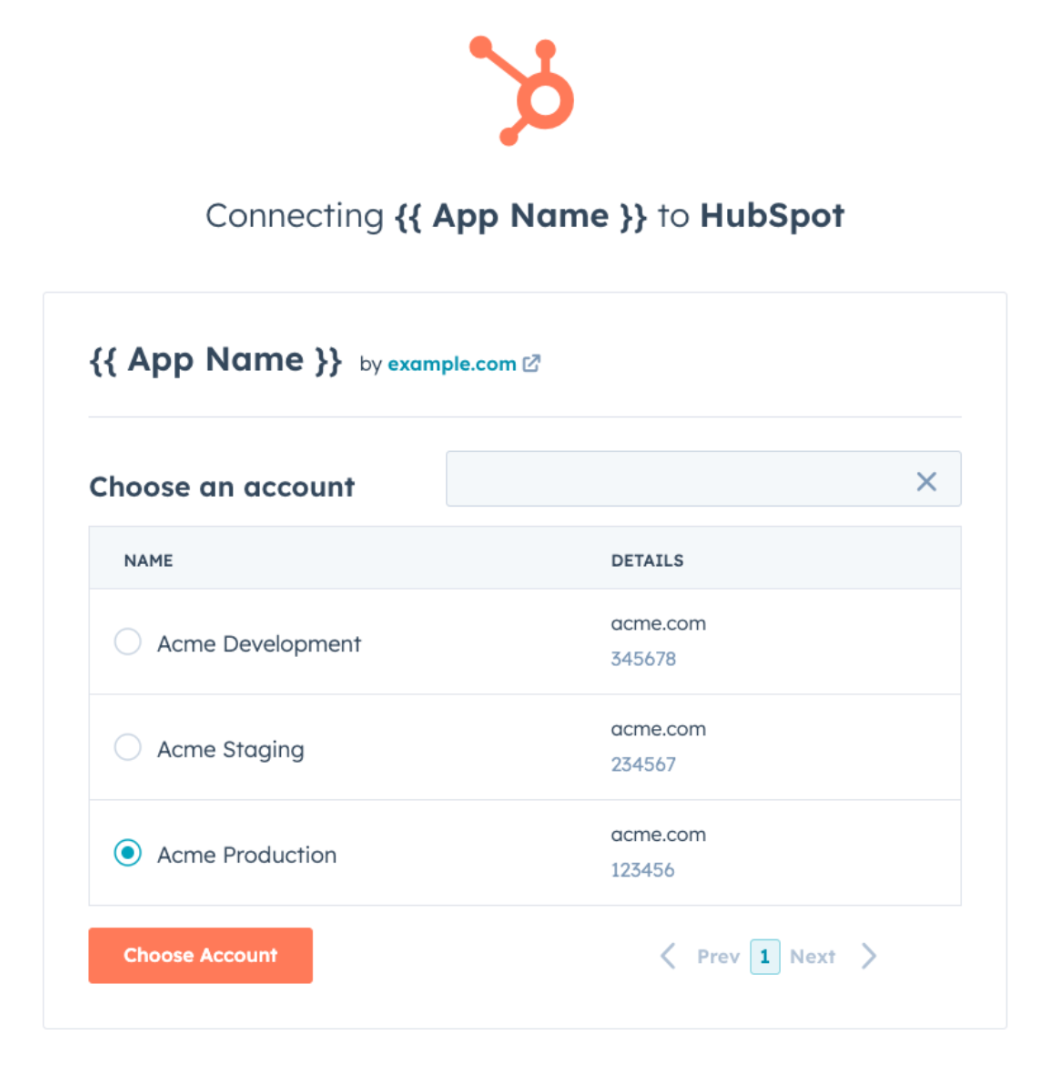
* Click **Choose Account**.
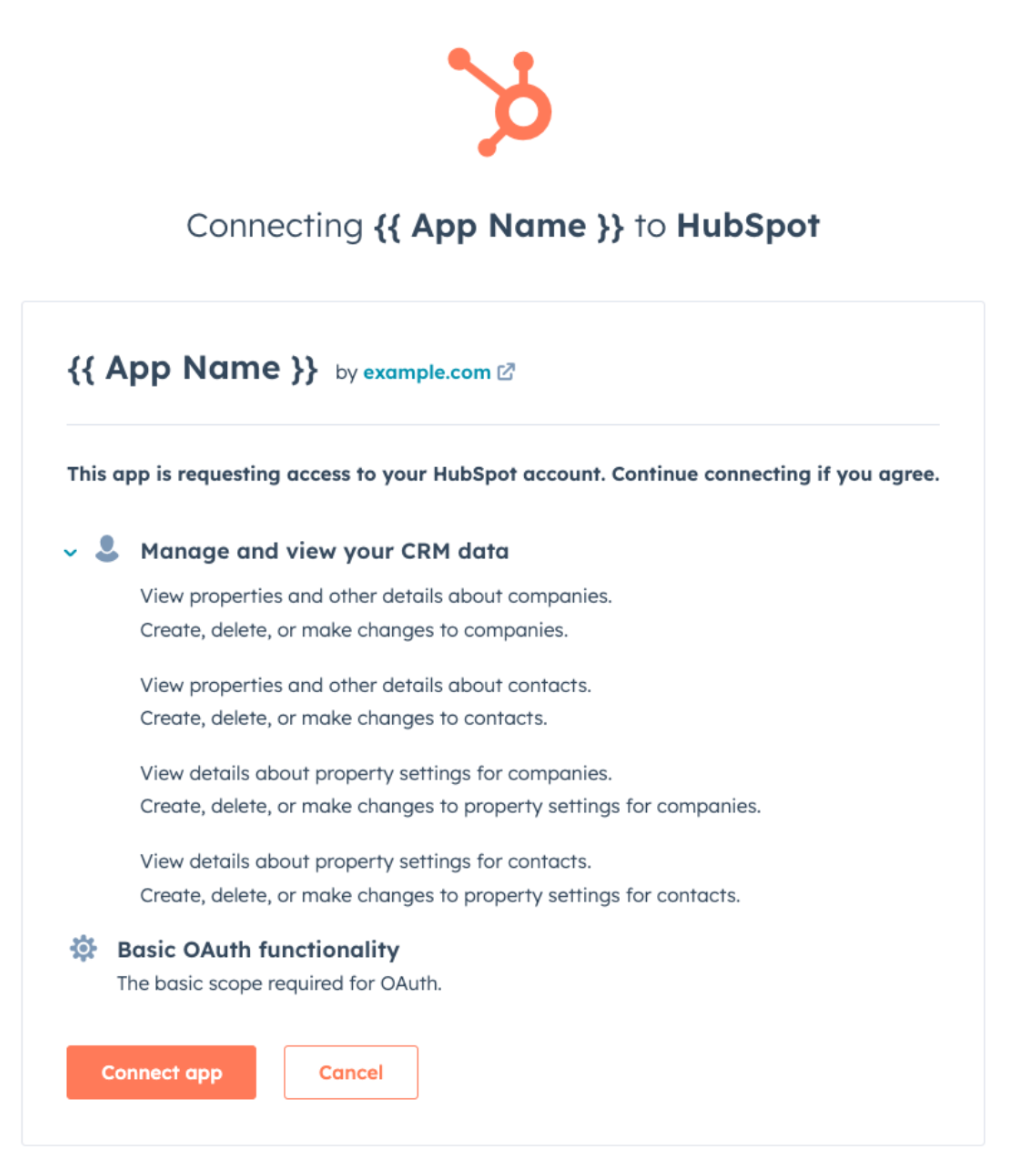
* Review the requested scopes on this screen. Gyfti-App requests access to read and write contacts & companies, as well as read and edit contact & company properties.
* Click **Connect app**.
* You will be redirected to the app.gyfti.fr “Integrations” page and you will see now you HubSpot account is connected.
[****](https://developers.hubspot.com/docs/apps/developer-platform/list-apps/listing-your-app/create-an-app-listing-setup-guide?utm_campaign=41448784-Rejected%20App%20Nurture\&utm_medium=email&_hsenc=p2ANqtz-9K3sJLsyClxM_10gIh2s1J9bwltKtWrCfd_JPywK5A7n3ci81bdSXkXgMOoMZSYLT41fWAxqpu75H-r76aPVGoUWHWNg&_hsmi=270205694\&utm_content=270205694\&utm_source=hs_automation#use-the-app)**Use the app**
With Gyfti, you can send gifts to your HubSpot contacts or reward users with points after they complete a challenge. To learn how to set this up, refer to the following sections:
[Sending gifts via HubSpot](/hubspot-integration/sending-gifts-via-hubspot)
[Rewarding Users with Points](/hubspot-integration/rewarding-users-with-points)
[****](https://developers.hubspot.com/docs/apps/developer-platform/list-apps/listing-your-app/create-an-app-listing-setup-guide?utm_campaign=41448784-Rejected%20App%20Nurture\&utm_medium=email&_hsenc=p2ANqtz-9K3sJLsyClxM_10gIh2s1J9bwltKtWrCfd_JPywK5A7n3ci81bdSXkXgMOoMZSYLT41fWAxqpu75H-r76aPVGoUWHWNg&_hsmi=270205694\&utm_content=270205694\&utm_source=hs_automation#disconnect-the-app)**Disconnect the app**
{% hint style="info" %}
**Note:** If you disconnect your HubSpot account from Gyfti, triggers (challenge submissions, signup, and login) will stop sending data from app.gyfti.fr.\
Actions such as sending digital or postal gifts will also stop working.
{% endhint %}
* Log in to [app.gyfti.fr](https://app.gyfti.fr).
* Navigate to **Reglages** > **Integrations > Integrations natives**. ()
* Locate the HubSpot card.
* Click **Supprimer**.
* Write **SUPPRIMER** and click Oui,supprimer
[****](https://developers.hubspot.com/docs/apps/developer-platform/list-apps/listing-your-app/create-an-app-listing-setup-guide?utm_campaign=41448784-Rejected%20App%20Nurture\&utm_medium=email&_hsenc=p2ANqtz-9K3sJLsyClxM_10gIh2s1J9bwltKtWrCfd_JPywK5A7n3ci81bdSXkXgMOoMZSYLT41fWAxqpu75H-r76aPVGoUWHWNg&_hsmi=270205694\&utm_content=270205694\&utm_source=hs_automation#uninstall-the-app)**Uninstall the app**
To uninstall Gyfti-App from your HubSpot account, follow the instructions in [this HubSpot Knowledge Base article](https://knowledge.hubspot.com/integrations/connect-apps-to-hubspot#uninstall-an-app).
# Triggers and Actions reference
### Contact Resolution (How we identify the contact in HubSpot)
For all triggers, Gyfti ensures that a contact exists in HubSpot before sending any event.
#### General behavior
* If a contact with the given email already exists in HubSpot → we use that contact
* If no contact exists → we create a new one using:
* Email
* First name (if available)
* Last name (if available)
***
### Trigger-specific behavior
#### 1. Signup / Login triggers
When a user signs up or logs in:
* We use the user’s email to find the contact in HubSpot
* If the contact does not exist, it is created
* The contact is then enrolled in the HubSpot workflow
**Data it sends**: `userEmail`, `firstName`, `lastName`, `date`
***
#### 2. Challenge Form Submitted
When a challenge form is submitted:
* Gyfti scans the form answers to find an email address
* If an email is found in the answers → this email is used to resolve the contact in HubSpot
* If no email is found → we fallback to the participant’s email
Then:
* If the contact exists → the event is added to that contact
* If not → a new contact is created and the event is added
**Data it sends:** `challengeName`, `challengeStatus` `challengeId`, `participantName`, `submitted_email`, `ambassadorEmail`, `allAnswers`, `answer1` – `answer10`
{% hint style="info" %}
`challengeStatus` values are "`in_progress` or `to_validate`" .
You can use these values for creating conditions on your HubSpot workflow.
{% endhint %}
***
#### 3. Challenge Form Validated
When a challenge form submission is validated:
* We use the participant's email to find the contact in HubSpot
* If the contact does not exist, it is created
* The event is then added to that contact's timeline
Data it sends: `challengeName` , `challengeStatus` , `challengeFormAnswersId` , `participantName` , `participantEmail` , `submissionDate`
***
### Actions
Actions are available inside HubSpot Workflows. Use them to trigger operations in Gyfti when a workflow condition is met.
**Send a Digital Gyfti**
What it does: Adds the contact to a digital gift campaign in Gyfti.\
Required fields:
* `campaign` — ID of the digital campaign
* `contact_firstname`, `contact_lastname`, `contact_email` — mapped from contact properties
* `user_email` — Gyfti admin email for notifications
Example: Enroll a contact in a digital gift campaign when they reach the "Customer" lifecycle stage.
***
**Send a Postal Gyfti**
What it does: Adds the contact to a physical gift campaign, including shipping details.\
Required fields:
* All fields from *Send a Digital Gyfti*, plus:
* `address`, `zip_code`, `city`, `country`, `phone`
* `additional_address`, `company` *(optional)*
Example: Send a physical gift when a deal is marked Closed Won, using the contact's shipping address.
***
**Validate Challenge Submission**
What it does: Marks a challenge form submission as validated in Gyfti.\
Required fields:
* `challenges_form_answers_id` — unique ID of the submission to validate
Example: Trigger validation automatically and rewarding the user with the challenges points.
***
**Edit a Gyfti User**
What it does: Updates a user's profile, segment, or credit balance in Gyfti.\
Required fields:
* `email` — identifies the user in Gyfti
Optional fields:
* `first_name`, `last_name`
* `cagnotte` — new credit balance
* `segment` — user segment or tag
* `send_email` — `yes` or `no` to trigger a notification
Example: Update a user's segment to "VIP" and add credits when they hit a milestone. The email sent to the user mentions thya have got new points added in their account.
# Sending gifts via HubSpot
## **Use Case: Send Gifts via HubSpot**
### **What you’ll build**
Send a gift to a contact automatically from a HubSpot workflow using a Gyfti campaign.
***
### **Prerequisites**
Before starting, make sure you have:
* A Gyfti account connected to HubSpot
* A **campaign published in Gyfti** (digital or postal)
***
### **Step 1 — Create a campaign in Gyfti**
Create either:
* **Digital campaign**
* Allows multiple products
* Contact chooses their gift via email
* **Postal campaign**
* One product only
* Gift is sent directly to the contact
👉 Once created, you will arrive to the campaign details page
***
### **Step 2 — Get the Campaign ID**
* Open your campaign page and check the URL.
* Copy the **campaign ID** from it.
* It looks like: `1775908447578x468627335059121600`
👉 You will need this ID when configuring the HubSpot action.
***
### **Step 3 — Create a HubSpot workflow**
* Go to HubSpot → Workflows
* Create a new workflow
***
### **Step 4 — Add Gyfti action**
* Add action:\
👉 **Send a digital Gyfti campaign**\
*(or postal depending on your case)*
* Fill in:
* Campaign ID (from Step 2)
***
### **Step 5 — Enroll contacts**
When a contact enters the workflow:
* The contact is added to the Gyfti campaign
* The gift is sent based on campaign type
***
### **What happens next**
#### **Digital campaign**
* The contact receives an email
* They can choose their gift from the available products
#### **Postal campaign**
* The gift is sent directly
* No selection is required
You can verify the contact has been added in your campaign.
***
### **Important notes**
* Postal campaigns require valid address data
* Digital campaigns require a valid email
# Rewarding Users with Points
## **Use Case: Reward Users with Points via HubSpot**
### **What you’ll build**
Automatically add points to a user in Gyfti when a condition is met in a HubSpot workflow (e.g. after completing a challenge or reaching a milestone).
***
### **Prerequisites**
Before starting, make sure you have:
* A Gyfti account connected to HubSpot
* Access to the **Portail module** in Gyfti
***
### **Step 1 — Create a HubSpot workflow**
* Go to HubSpot → Workflows
* Create a **contact-based workflow**
* Define your trigger (e.g. action completed, form submitted, lifecycle stage updated)
***
### **Step 2 — Add Gyfti action**
* Add action:\
👉 **Edit a Gyfti User**
***
### **Step 3 — Configure the action**
You can update the following fields:
* **First name** *(optional)*
* **Last name** *(optional)*
* **Segment** *(optional)*
* **Points** *(optional)*
* **Send email** *(optional)*
***
### **Important behavior**
#### **Points are added (not replaced)**
* The value entered in “Points” is **added to the user’s current balance**
* It does **not overwrite** existing points
👉 Example:
* User has 100 points
* You send 50 points → User now has **150 points**
***
#### **Automatic segment creation**
* If a **segment** is provided:
* If it exists → the user is added to it
* If it does not exist → it is **automatically created**, and the user is added
👉 This can be used to **sync HubSpot segments/lists with Gyfti**
You can verify the Segment was created in your Portail
***
#### **Send email option**
* If enabled → the user receives an email notification
* The email informs them that **new points** have been added to their account
***
### **Step 4 — Enroll contacts**
When a contact enters the workflow:
* The user is created or updated in Gyfti (based on email)
* The selected fields are updated
* Points are added if configured
***
### **What happens next**
* The user sees their updated points balance in their Gyfti account
* (Optional) They receive an email notification
* They can use their points to redeem rewards in the Portail